QR Code Business Cards: How to Connect Printed Cards to Your Digital Profile
A QR on your printed business card can instantly connect paper to phone, but only if you choose the right payload, format, and print settings. This article gives practical rules, tests, and a step by step workflow so your QR reliably delivers the contact information you intend.
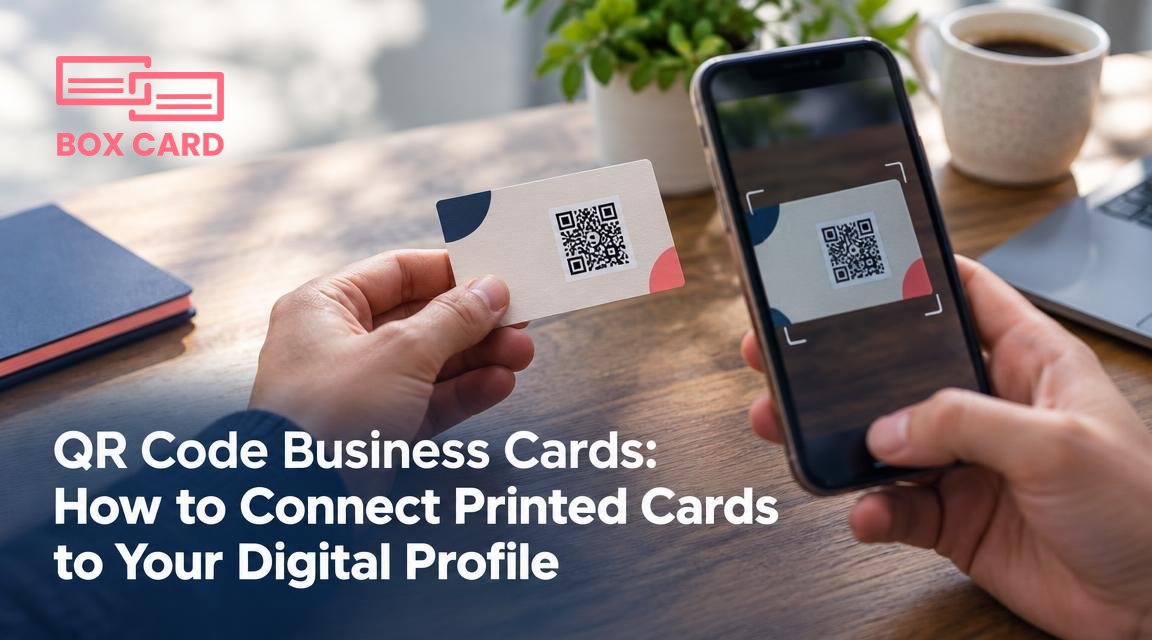
You hand out a printed business card and want the recipient to add you to their phone without typing. A QR code on the card lets people jump from paper to a digital profile instantly, but a poorly implemented QR creates confusion instead of convenience. This article explains the practical choices you must make, with clear trade offs and step by step guidance so your printed card reliably connects to the right digital information.
Which QR payload should you use: vCard, URL, or something else?
Decide what you want people to do after they scan. The three common options are:
- vCard QR: Encodes name, phone, email, company and address directly in the code. Advantage: immediate add to contacts without a web page. Limitations: some apps limit field support, and very long vCards can exceed QR capacity.
- URL to a contact landing page: Sends the scanner to a web page with a contact card, social links, calendar links, and downloads. Advantage: richer presentation, analytics, easy to update. Downside: requires internet and a well designed landing page.
- Special actions: calendar invites, Wi Fi credentials, or a direct link to a file or portfolio. Use only when that action is the primary purpose of the card.
Which to pick: if your priority is the fastest way to appear in someones phonebook, choose a vCard QR. If you want to control the message, present multiple contact methods, or track scans, choose a URL (preferably behind a dynamic QR code). If you need both, place a URL that offers a vCard download on the landing page.
Static QR vs dynamic QR code: trade offs
- Static QR: Encodes the final data in the code itself. Pros: free, permanent, no server dependency. Cons: impossible to change after printing and offers no analytics.
- Dynamic QR code: Encodes a short redirect URL that you can update on the providers side. Pros: editable destination, can track scans per time and location. Cons: usually involves a paid service and depends on that service remaining available.
Recommendation: use a dynamic QR code if you expect to change your contact page, run campaigns, or want analytics. Use static for a simple permanent vCard and when you do not want any external dependency.
Design and print best practices
Small mistakes kill scan reliability. Follow these rules when placing a QR on a business card.
- Minimum size: For business cards, aim for at least 2.0 cm square but 2.5 to 3.0 cm is safer, especially for older phones or when scanning at an angle.
- Quiet zone: Leave a clear margin around the code equal to four modules of the QR pattern. Do not place logos, patterns, or edge crop inside this area.
- Contrast: Dark code on a light background reads best. Avoid light-on-dark unless you test extensively. Do not print metallic inks inside the code area.
- Error correction: QR supports levels L, M, Q, H. Use M or Q for normal use. Choose H only if you plan to overlay a small logo, and test widely because higher correction increases the codes density.
- File format for print: Provide a vector file (SVG or EPS) when possible. If not, use a high resolution PNG at 300 dpi sized to the printed dimensions.
- Avoid decorative distortion: Rotating slightly is acceptable, but stretching, heavy filters, or transparency can break scanning.
What information to include on the linked page
If you use a URL, design the landing page for quick action. Include these elements near the top:
- A simple clickable button to download the vCard file.
- One-tap actions: call, email, message, or add to calendar where appropriate.
- Visible social profile links and a short one-line role description so the recipient remembers where they met you.
- A short privacy note if you collect any visitor data, and a clear consent point for subscribing to lists.
If you want to minimize friction, skip long forms and keep the page lightweight for fast loading on mobile networks.
Testing checklist before you print
- Open the QR with stock camera apps on iOS and Android devices. Verify the landing page or vCard imports correctly.
- Test with older phones and low-light conditions, both close and from a short distance.
- Try printing a proof at actual size and scanning from the printed proof rather than just scanning the digital preview.
- Verify that the vCard fields map correctly across major phone contact apps: name, company, role, phone, email, and URL.
- If you use a dynamic QR, confirm you can change the destination and that analytics appear as expected.
Fallbacks and accessibility
Scans sometimes fail. A QR should complement, not replace, basic contact information. Include at least one of these fallbacks on the printed card:
- A short memorable URL or a custom domain slug the recipient can type easily.
- A typed phone number and email address. People still prefer to copy data by hand in some situations.
- A line that says "If QR fails, search for my name on LinkedIn" only when your LinkedIn profile is easy to find and up to date.
Also consider color-blind friendly contrast and sufficiently large font for small text so older recipients can read the alternate contact details.
Privacy and tracking considerations
If you use a dynamic QR with analytics, be explicit about what you collect. Basic scan counts and device type are common and low risk, but location precision or personally identifiable cross-references require consent in many jurisdictions. If you plan to ask for a download or newsletter signup on the landing page, include a short privacy statement and a way to contact you about data removal.
When to avoid a QR on your card
QR codes are not always appropriate. Skip them when:
- Your audience is unlikely to scan QR codes, for example certain older demographics or formal printed materials where digital follow up is discouraged.
- The card must be extremely minimal and any visual element would distract from a designers intent. In that case, provide a short URL instead.
- You have no way to maintain a dynamic link and expect a high rate of link rot, such as linking to temporary campaign pages without long term hosting.
Quick practical workflow to add a QR to your next print run
- Choose payload: vCard QR for direct import or URL for a landing page.
- Create the vCard or landing page and verify mobile performance.
- Decide static or dynamic. If you want analytics or later edits, create a dynamic QR redirect.
- Generate the QR at the exact dimensions needed and export as vector or 300 dpi PNG.
- Place it on the card with a clear quiet zone and test printed proofs from multiple phones.
- Include typed fallback contact details and a short instruction line like "Scan to save my contact" if space allows.
If you already collect printed cards and want to centralize contacts, many business card scanning apps can read vCard QR and ordinary cards alike and add them to your contact database. Boxcard, for example, supports scanning printed cards and organizing the resulting contact information digitally. That way you can merge contacts scanned from paper with those added via QR without manual entry.
A well designed QR raises the likelihood that a recipient will keep and act on your contact information. Choose the payload based on the action you want, prefer a dynamic QR when you need flexibility or tracking, and always print a tested proof with clean contrast and a sufficient quiet zone. If you follow these steps, your printed card will behave like a reliable bridge to your digital profile rather than an experiment that rarely gets scanned.

