Business Card Management for Sales Teams: A Practical Guide to Shared Contact Data
Turn scattered business cards into shared contact data by defining ownership, a short verification window, and simple merge and sync rules. Pilot the process with a small group, measure three metrics, and adapt before a full rollout.
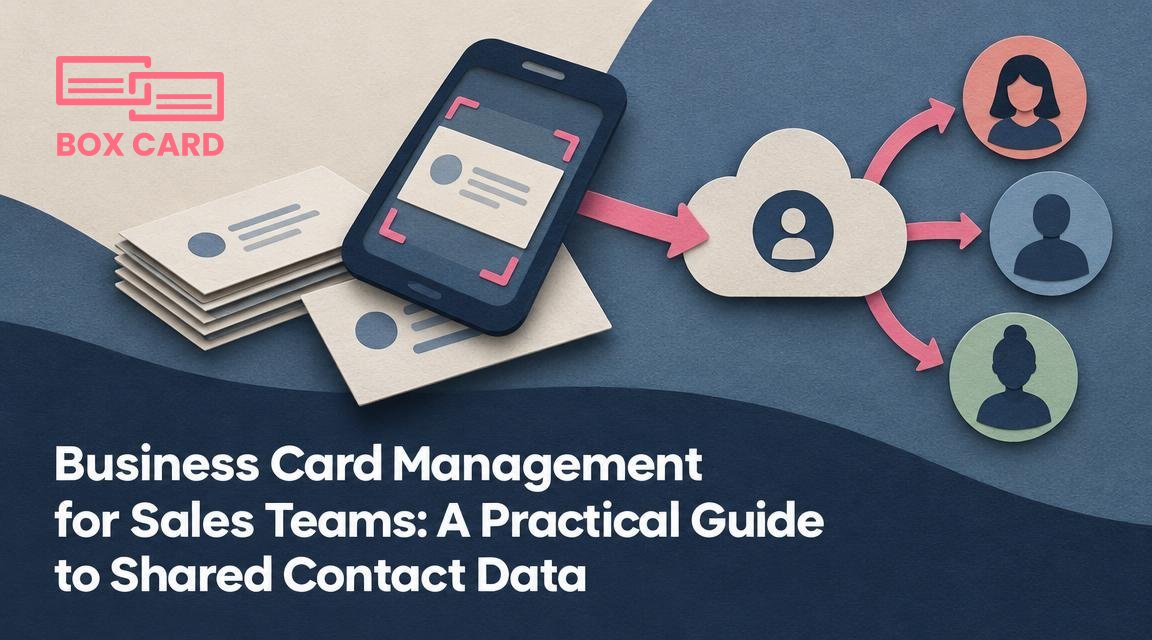
Sales teams collect business cards constantly, but that pile of paper rarely turns into shared, actionable contacts. The real problems are not scanning accuracy or cloud storage; they are ownership, timing, and a repeatable process teams can follow. This guide shows how to turn scattered business cards into reliable shared contact data your sales team can use, who should own each contact, and how to avoid common mistakes that create duplicates and missed opportunities.
Start by defining contact ownership and a simple rule set
Without clear ownership, contacts slip through the cracks. Decide one simple rule the team will actually follow, for example:
- First capture owns the contact for 7 days, unless assigned to a regional owner.
- Account-level contacts belong to the account owner in your CRM.
- Personal or sensitive contacts remain private unless explicit permission is given to share.
Why these rules matter: ownership determines who updates status, who follows up, and who merges duplicates. Keep rules short and procedural so reps can apply them in the field without debating edge cases.
Decide what is shared and what stays private
Not every card should become a shared lead. Set categories and a gate for sharing.
- Public leads: business cards from prospects, partners, and procurement. These go into shared folders or pools.
- Private contacts: personal connections, referrals, vendors for internal use only.
- Staging contacts: recently scanned cards that need verification before sharing.
Example policy: A scanned card is staging for 48 hours. The rep verifies contact details and tags it as public or private. Only public contacts flow into the team pool. This prevents spam entries and reduces duplicates created by hurried scans.
Choose a single source of truth and keep it simple
A team needs one place where the current contact record lives. That can be your CRM, a shared contact folder, or a contact management tool. The important part is a clear canonical location and a documented export/import path for other tools.
Practical rule: If a card is in the team pool, treat the CRM record as the source of truth for opportunities, and the shared contact list as the source of truth for contact details and meeting notes. Avoid splitting information across five tools.
Design a straightforward sales team contact workflow
Make the capture-to-action path short. A recommended sales team contact workflow looks like this:
- Capture: rep scans the business card using a business card scanner app on their phone and fills a one-line note: where and why they met.
- Verify: within 24 to 48 hours, the rep confirms email and role, updates tags, and assigns ownership if needed.
- Share or keep private: the rep marks the contact public for the team pool or private for personal use.
- Action: owner creates follow-up task either in the tool or by exporting the contact to the CRM.
- Close loop: when a contact is qualified, tag the record with stage and update the CRM record to avoid duplicating effort.
Capture and minimal context matter. A short note like "Met at X conference, interested in pilot Q4" is far more useful than an untagged contact.
Handle duplicates and merges with clear rules
Duplicates are inevitable. Rather than letting every rep decide how to merge, define a small set of rules:
- Match by email when possible. If email is missing, match by name plus company or phone.
- When merging, preserve the most recent non-empty fields for phone, role, and company, and keep a combined notes field that records original capture details.
- Keep an audit trail: record who merged what and when. That prevents lost follow-up context.
Example: Two reps scanned the same VP. The merge rule keeps the earliest meeting note, the most current title, and sets account owner to the rep assigned in the CRM. If ownership is disputed, the default goes to the account owner in the CRM.
Syncing with CRM: practical options and caveats
Integrations vary across tools. If your workflow supports automated sync, use it for high-value contacts and keep low-value or private contacts out of the CRM. If you do not have a direct sync, export CSVs on a cadence or copy records manually for qualified contacts.
Checklist when planning sync:
- Decide which fields must transfer (email, role, company, tags, owner, meeting note).
- Define triggers: only sync when contact is tagged as public and qualified, or after a verification step.
- Map ownership rules between the contact tool and CRM to avoid orphaned leads.
Keep exports conservative. A noisy export floods the CRM and hides real leads under unqualified contacts.
Access controls, privacy, and auditability
Sales contact data contains personal information. Address basic compliance and internal policy by doing three things:
- Restrict who can change ownership or delete contacts. Assign admin roles for those actions.
- Keep an audit log of captures, edits, shares, merges, and exports. This is useful for both process improvement and responding to data requests.
- Include a procedure for data deletion requests and a periodic review to remove stale contacts (for example, older than three years and no activity).
Before storing contacts, check local privacy rules that apply to your company. When in doubt, limit sharing until you get consent or a compliance sign-off.
Practical onboarding and enforcement
Rules are only as good as adoption. Run a one-week pilot with three reps and a sales manager, then iterate. Use this onboarding checklist:
- Explain ownership rules and the public versus private distinction in a 20-minute session.
- Show how to scan a card, add a one-line context note, tag, and mark public or private.
- Practice merging duplicates in a live session with real examples.
- Set expectations: reps must verify new scans within 48 hours or the record returns to staging for review.
Enforce with light automation: reminders for unverified scans and a weekly digest of new public contacts that need action.
Measure success with three simple metrics
Pick a small set of indicators to see whether the new process helps sales activity:
- Time from capture to verification, target 24 to 48 hours.
- Percent of scanned contacts that become qualified leads in CRM within 30 days.
- Duplicate rate after merging, measured as duplicates per 100 new contacts.
These metrics focus attention on speed, quality, and data hygiene rather than raw volume.
Example tools and where Boxcard fits
You will need a reliable way to digitize cards and keep records searchable. Use a business card scanner app to capture contact details quickly and attach a note. Tools such as Boxcard can handle scanning, organizing, and basic shared contact management. Pair that app with your CRM or a shared contact folder, following the ownership and sharing rules described above.
Make sure the tool you pick supports export or a manual workflow that fits your sync plan. If it lacks automated CRM sync, a disciplined export cadence still produces strong results if the ownership and verification rules are enforced.
Start small and improve. A clear ownership rule, a short verification window, and a conservative sync policy will reduce duplicates, keep sensitive contacts private, and make shared contact data genuinely useful for follow-up and pipeline development.
Next steps: pick one ownership rule, run a one-week pilot with two reps and one manager, measure the three metrics above, and iterate. After the pilot, freeze your rules into a one-page process that every rep can keep on their phone.

