Best Ways to Digitize Japanese Business Cards and Manage Business Contacts
Practical, tested steps to turn Japanese meishi into useful digital contacts: capture tips, what to check in an app, common OCR errors with Japanese text, and a checklist to pick the right workflow for scanning, sharing, and CRM export.
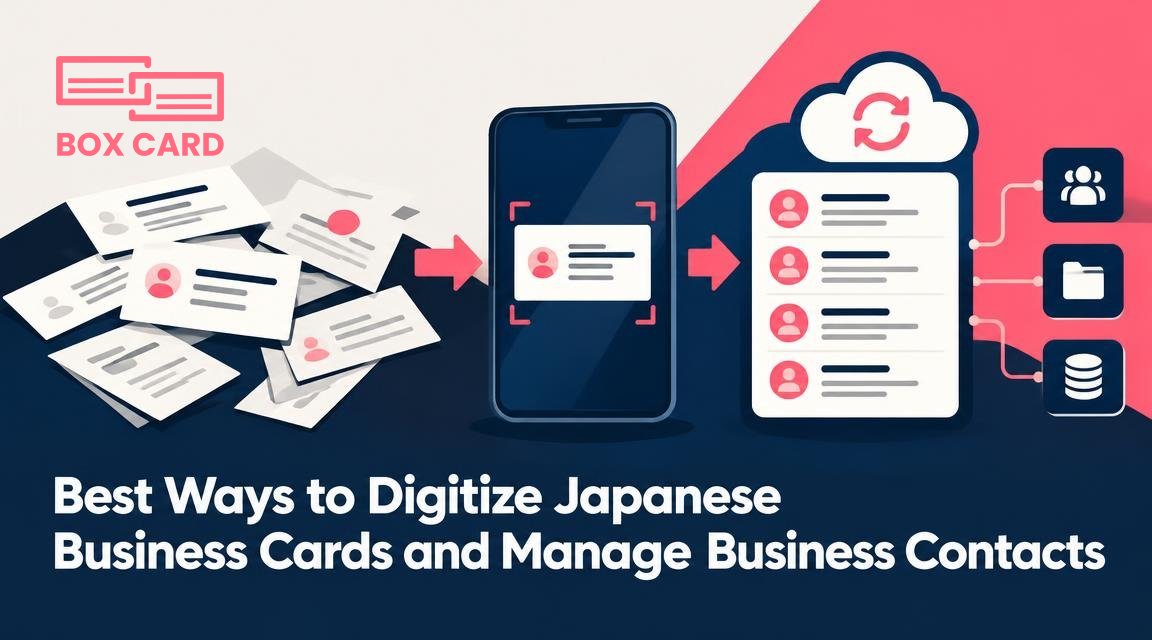
You have a stack of Japanese business cards, and you need two things: accurate digital records, and a reliable way to use those contacts in follow up. This article explains practical steps to convert Japanese meishi into clean digital contacts, how to choose the right app, common OCR problems with Japanese text, and how to organize and share contacts so they actually help your work.
How to digitize business cards in Japanese: a step by step process
Good results start before you open an app. Follow these steps when you scan a Japanese business card.
- Prepare the card and surface. Lay the card flat on a neutral, non-reflective surface. Remove phones, watches, or anything that can cast a shadow. If the card has a glossy finish, tilt the card slightly to reduce glare, or use diffuse light.
- Use steady, even lighting. Natural daylight from the side is ideal. If you use indoor lights, place a soft light source above and avoid mixed color temperatures that confuse OCR.
- Frame and focus carefully. Fill most of the camera frame with the card. Make sure the whole card is in focus, including small text and company seals. If your app supports batch capture, place multiple cards neatly separated so the app can detect individual cards.
- Choose the right input language or mode. Set the app or camera to recognize Japanese and English if the card uses both scripts. Some apps provide a specific mode for Japanese cards; use it when available.
- Verify and correct immediately. After OCR, check fields that matter: name, company, department, job title, email, phone, and address. Japanese names can be ambiguous in order and reading, so correct kana or romaji results when necessary.
- Save with consistent metadata. Add tags or labels such as event name, date, or how you met. Record follow-up tasks right away, or export the contact to your CRM if you plan to follow up soon.
What to look for in a business card scanning app
Not all apps handle Japanese cards equally. When you evaluate a business card scanning app, compare these criteria.
- Japanese OCR accuracy. Accuracy with kanji, kana, and mixed scripts is the single most important factor. Look for apps that advertise high-accuracy Japanese OCR or that let you select Japanese as the recognition language.
- Easy manual editing. Automated OCR will make mistakes. The app should make it fast to correct fields, move text between fields, and add furigana or romaji where you need it.
- Export options and CRM integration. If you use a CRM, check whether the app supports CRM integration or exports to CSV and vCard formats. Having smooth CRM integration avoids retyping and duplicate records.
- Organization features. Tags, folders, and searchable notes help you find contacts by event, industry, or priority. This is crucial when you manage hundreds of cards.
- Batch scanning and speed. If you scan many cards, batch mode and fast processing save hours. Some apps process images on-device, others use cloud OCR; choose what fits your privacy and speed needs.
- Sharing and team access. If you work in a sales or support team, check for features that let you share contacts or sync them across users, often called business card information sharing app capability.
- Backup and cloud options. Confirm whether the vendor stores your contacts in the cloud and whether you can export a full backup. Terms like Cloud business card management indicate a hosted backup option, which is convenient but requires trusting the provider.
Examples of app types you will encounter are: a dedicated business card OCR app, a broader business card management app, an AI business card scanner that claims improved recognition with machine learning, and free business card management solutions with limited features. Try a small batch in each candidate app to compare real accuracy on your own cards.
Common OCR issues with Japanese cards and how to fix them
Japanese meishi present specific hurdles. Knowing the common errors makes correction faster.
- Mixed scripts confuse field ordering. A card may use kanji for names and romaji for email addresses. OCR sometimes mixes name order. Confirm surname and given name fields and add furigana if the app allows.
- Small or dense type. Tiny text, especially addresses or department names, gets garbled. Re-scan at higher resolution or photograph with macro focus if your phone supports it.
- Vertical layouts. Some Japanese cards are printed vertically. Make sure your app detects rotated text or manually rotate the image before OCR.
- Company seals and stamps. Red hanko marks can obscure text. When a seal blocks an important word, enter the text manually from the original card.
- Nonstandard characters and punctuation. Emojis, decorative fonts, or vertical lines can cause segmentation errors. Use manual field editing to move misrecognized text into the correct fields.
How to organize and use digitized contacts effectively
Scanning is only the first step. Without a system, your digital contacts become the same stack of paper you started with. Use these rules.
- Name and company fields first. Standardize name order and company names. Decide whether to store names as "Family Name, Given Name" or "Given Name Family Name" and apply it consistently.
- Use tags for the context you actually search by. Tags like "Event-Tokyo-2025", "Prospect", or "Supplier" are practical. Avoid tags that are too granular unless you will actually filter by them.
- Sync and deduplicate. If you use a CRM or address book, import new contacts regularly and run a deduplication check. CRM business card management works best when exports map fields cleanly and duplicates are handled automatically.
- Share selectively. For team use, share only the people a colleague needs. A business card information sharing app feature is helpful when colleagues should access shared prospects, but respect privacy and internal rules.
- Keep a follow-up field. Record the next action and date. Turning a scanned card into a concrete next step prevents it from becoming dormant.
Privacy and legal considerations
Japanese privacy expectations matter. Treat personal contact details as sensitive business information. If you upload cards to cloud services, verify the provider's data handling policy and whether data can be exported on request. For company policies, follow your employer's rules about storing and sharing contact data.
Quick checklist: deciding among apps
- Test Japanese OCR accuracy on five representative cards.
- Confirm manual editing is quick and straightforward.
- Verify export formats you need, such as CSV or vCard, and check CRM integration options if you use a sales system.
- Compare batch scanning speed and whether cloud processing is optional.
- Check sharing and team features if you need to distribute contacts.
Apps to try include general categories like a business card digitization app, a High-accuracy business card scanning app, or a Free business card management solution for low volume needs. If you are evaluating Boxcard, look for its scanning accuracy and how it supports organizing contacts; search for Boxcard scanning app and Boxcard business card management when you compare options.
Start by scanning a small, representative sample from your stack. Use the checklist above to compare how many corrections each app requires, and choose the one that minimizes manual cleanup while fitting your sharing and export needs. If your workflow includes a CRM, prioritize CRM integration so your follow up is faster and less error prone.
