AI Business Card Scanner: How OCR Technology Converts Cards into Searchable Contacts
A clear, step-by-step explanation of how an AI business card scanner converts photos into structured, searchable contacts, with practical tips to improve accuracy, common failure modes, and a recommended verification workflow.
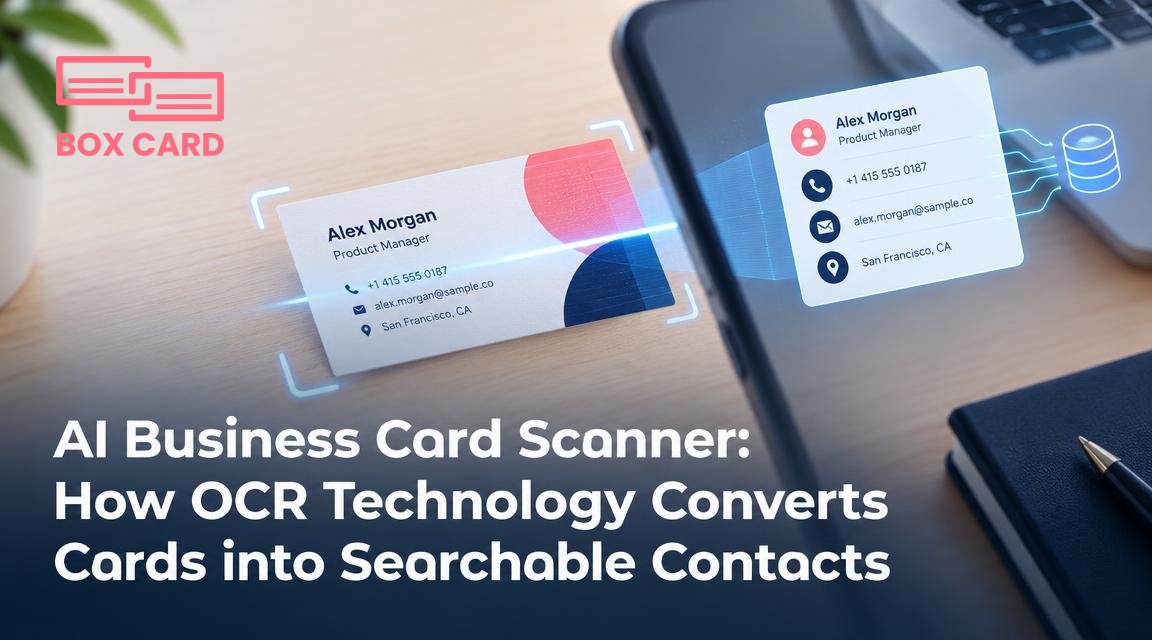
You have a stack of business cards and an app that promises to turn them into searchable contacts. That sounds simple, but how does the app actually read different card designs, handwriting, multiple languages, and odd layouts? This article explains what happens under the hood of an AI business card scanner: the stages of text extraction, the common failure modes you will run into, and practical choices to get reliable, searchable contacts.
What an AI business card scanner does, step by step
At a high level the scanner converts pixels into structured contact fields you can search and export. The process breaks down into stages. Each stage can affect the final result, so knowing them helps you make better scans and choose the right app.
1. Image capture and preprocessing
- Capture: the phone camera takes the photo. Good capture matters more than any algorithm.
- Preprocessing: algorithms correct perspective, crop the card from the background, rotate to upright, and adjust contrast or brightness. This stage also removes glare and reduces noise when possible.
If the capture is blurry, or the card is partially covered, later stages have little chance of extracting correct data.
2. Text detection and recognition
- Text detection finds text regions on the card. Modern systems handle multi-column and curved layouts.
- Optical character recognition turns those regions into character strings. Traditional OCR uses pattern matching; newer systems use neural networks trained on many fonts and scripts.
Recognition quality is often measured as OCR accuracy, which depends on font, print quality, and language support.
3. Layout analysis and grouping
Once text is recognized, the system groups lines and blocks: which lines form a name, which belong to the company, and which are addresses or taglines. This step is crucial for readable results but also where heuristics fail on unconventional cards.
4. Contact parsing and entity extraction
Contact parsing maps text strings to fields such as first name, last name, job title, phone, email, website, and address. This uses a mix of pattern matching (for emails, phone numbers) and natural language models or rules (for names and titles). Confidence scores are often attached to each field.
5. Verification, user correction, and export
Most apps show the parsed fields to the user and allow quick correction before saving. The system will then export the contact into the app’s database or to standard formats like vCard. Indexing makes the new contact searchable by name, company, tag, or keyword.
Why OCR accuracy varies and what you can do about it
OCR accuracy is not a single number you can apply everywhere. It changes with:
- Print quality: glossy finishes, metallic inks, and embossed text reduce legibility.
- Font choices: decorative fonts and tight kerning confuse recognition models.
- Contrast and lighting: shadows or low contrast reduce character separation.
- Languages and scripts: some engines support multiple alphabets well, others do not.
- Handwriting: machine-printed text is much easier to recognize than handwritten notes.
Practical tips to improve results
- Scan flat cards on a plain background in good light. Avoid glare and shadows.
- Capture both front and back when information is split across sides.
- If you must scan handwriting, add a quick manual correction step rather than trusting automatic parsing.
- When scanning multiple cards in a batch, review parsed fields afterward; batch capture reduces time but increases the chance of missed corrections.
Common parsing errors and how to detect them
Understanding common mistakes helps you spot problems without re-reading every field. Look for these telltale signs:
- Phone numbers parsed into the name field: usually caused by poor line grouping.
- Company name split into several fields or recorded as a person’s name when no clear name exists.
- International numbers without country codes; addresses losing commas and line breaks.
- Two people on one card, where the system chooses the wrong primary name.
If the app shows field-level confidence scores, use them. Low confidence in critical fields such as email or phone should trigger a quick manual check.
Trade-offs when choosing an app or configuration
Not all AI business card scanners are built the same. Your priorities should determine the trade-offs you accept.
On-device vs cloud recognition
On-device processing is faster and keeps data local, which is better for privacy. Cloud-based systems often provide higher accuracy because they can run larger models and continuous updates. Choose according to your privacy needs and whether you can tolerate sending images to a server.
Speed versus accuracy
Real-time scans aim for speed and may sacrifice deep layout analysis. If you need highly reliable contact parsing for CRM import, prefer apps that offer a verification step or allow deferred, higher-accuracy processing.
Language and script coverage
Check supported languages. If you network internationally, confirm the scanner can handle the scripts you expect. Some apps support dozens of languages; others are optimized for a few.
Integration and export formats
Look for apps that export to vCard or CSV and integrate with your CRM or contacts app. Also check how the app handles duplicate detection and whether it preserves both sides of a card.
How the technology differs for developers and product managers
If you are evaluating or building a scanner, here are concrete options and their consequences.
- Classical OCR engines such as Tesseract: free and reasonably accurate for clean printed text, but struggle with noisy images and complex layouts.
- Neural OCR models: CRNN and transformer-based recognizers offer higher accuracy on varied fonts and degraded images, but require more compute and labeled training data.
- Layout analysis: document layout models detect text blocks and segmentation. Combining visual layout models with text-based NER improves contact parsing.
- Entity extraction: use regexes for deterministic fields like email and phone, and train lightweight NER models for names and titles. A hybrid system reduces false positives.
For deployment consider: on-device models for privacy and offline use, and server-side processing when you need heavy models and batch jobs. Monitor field-level confidence and expose it to users for correction workflows.
Practical workflow to make scanned cards reliably searchable
- Capture: use a clean background and good light, scan both sides.
- Automated parse: let the app perform OCR and contact parsing.
- Quick verification: check high-value fields, especially phone, email, and name.
- Tag and annotate: add meeting notes, event tags, or company relations for future searchability.
- Export and sync: push contacts to your address book or CRM, and back them up to cloud storage if required.
Apps like Boxcard and other card scanners aim to automate these steps, but the human verification step is the high-return activity you should not skip after events with many cards.
When to trust automatic parsing and when to double-check
Automatic parsing is usually safe when:
- The app reports high confidence for name, phone, and email.
- The card is machine-printed, in a supported language, and photographed clearly.
Double-check when:
- The card contains handwriting, unusual fonts, or small print.
- There are multiple names, ambiguous titles, or no clear primary contact.
- You plan to bulk-import into a CRM where incorrect fields cause costly follow-ups.
A quick manual review of parsed contacts after an event catches most errors and saves time compared with fixing mistakes in your CRM later.
Make reviewing part of your post-event routine: set aside 10 to 20 minutes to scan and verify a batch of cards, rather than trusting raw OCR output.
If your goal is searchable, accurate contacts rather than a perfect, hands-off solution, the combination of good capture technique, an app that exposes confidence, and a short verification step delivers the best results.
Practical next steps: test a few cards with the scanner you plan to use, intentionally include challenging examples such as a card in another script, a handwritten note, and a metallic-finish card. Compare results, note where errors occur, and choose the workflow that balances speed, privacy, and accuracy for your needs.

